Creating and opening Projects
Create a Project inside a Collection to store job metadata
Collections and Projects
A collection is a group of projects.
A project contains snapshots which are indexes of folders and files.
When a job finishes there will be SOURCE and COPY snapshots.
Accessing projects
Every job must be assigned to a project before it can be started. Every project belongs to a collection.
Do not use one project for all jobs. As the number of snapshots will make it slow to search and it will use a lot of memory.
Create different projects to split up your work.
There must at least one collection. All the projects can be in just one collection, it's just a way of grouping related projects together.
Examples of collection names include TV or Film, different clients or years or offices.
Before adding a new job, the project and collections need to be setup using the Project Browser.
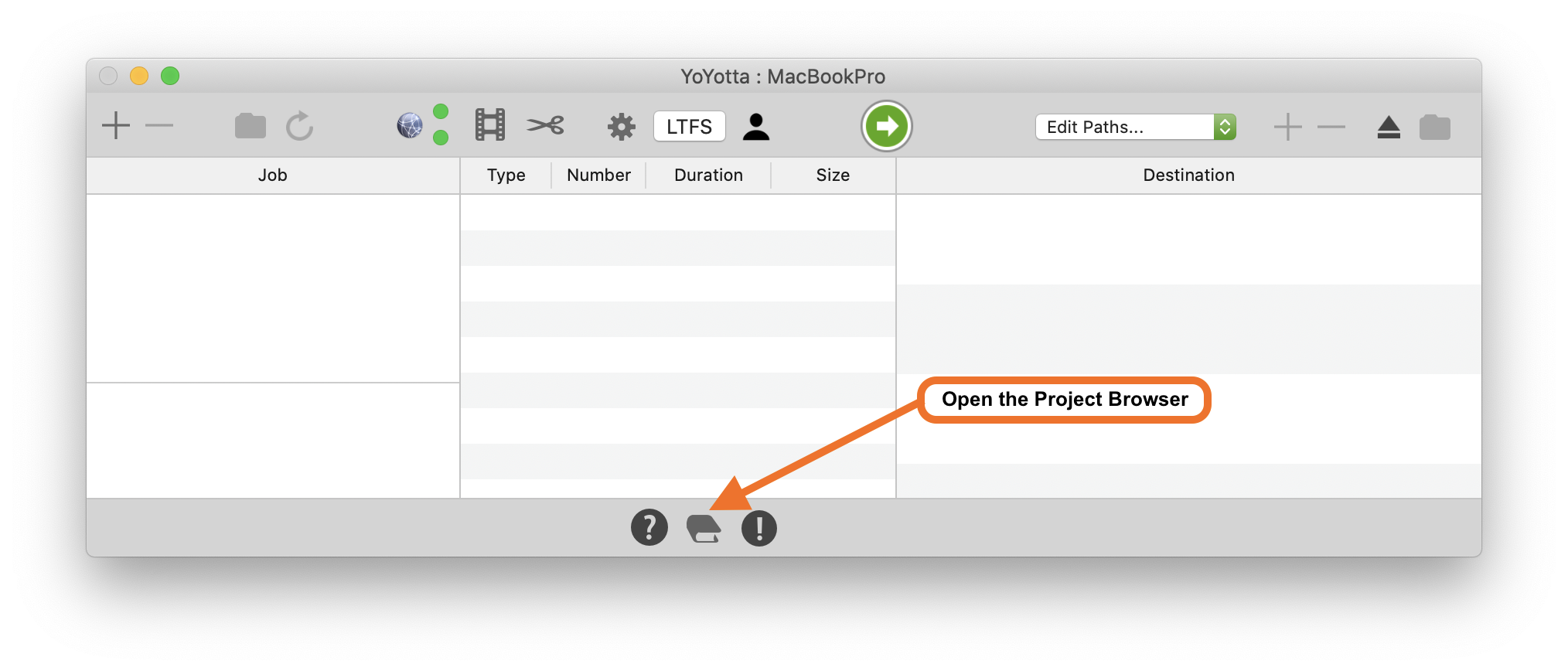
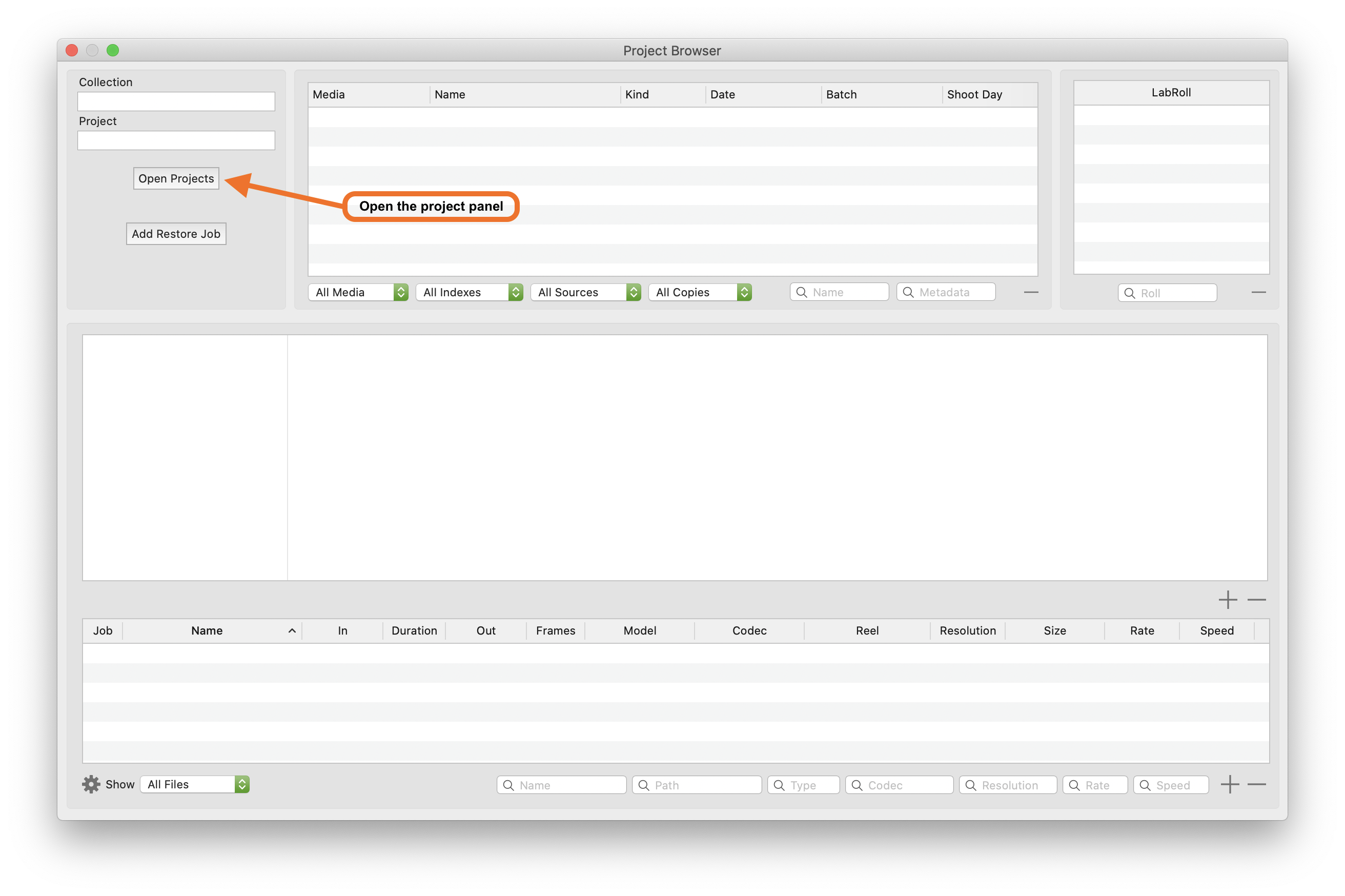
Open the Project Browser by clicking the icon at the bottom of the main panel. Then click Open Projects and add or open a project as shown further down this page.
When a new job is added it uses the current project that is open in the Project Browser.
To use a different project, open the project in the Project Browser before adding the job.
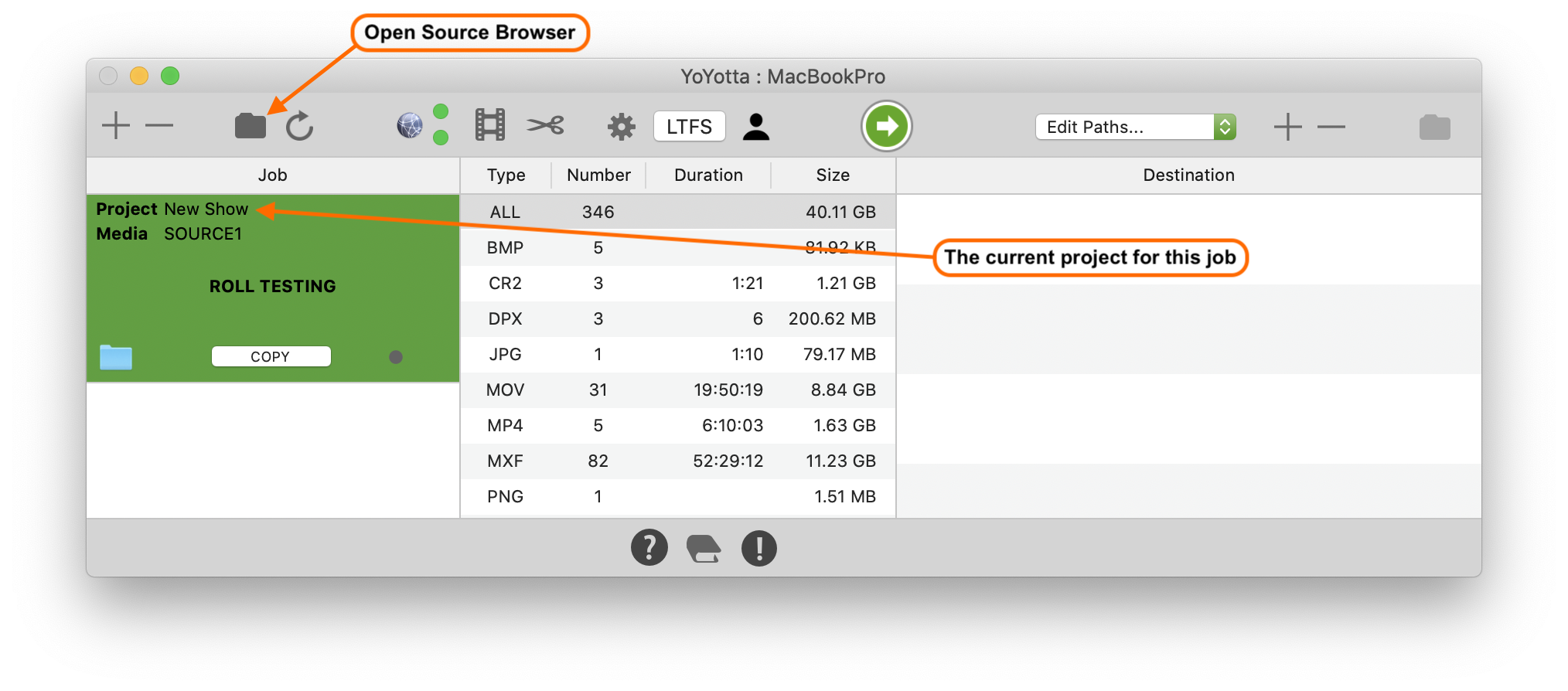
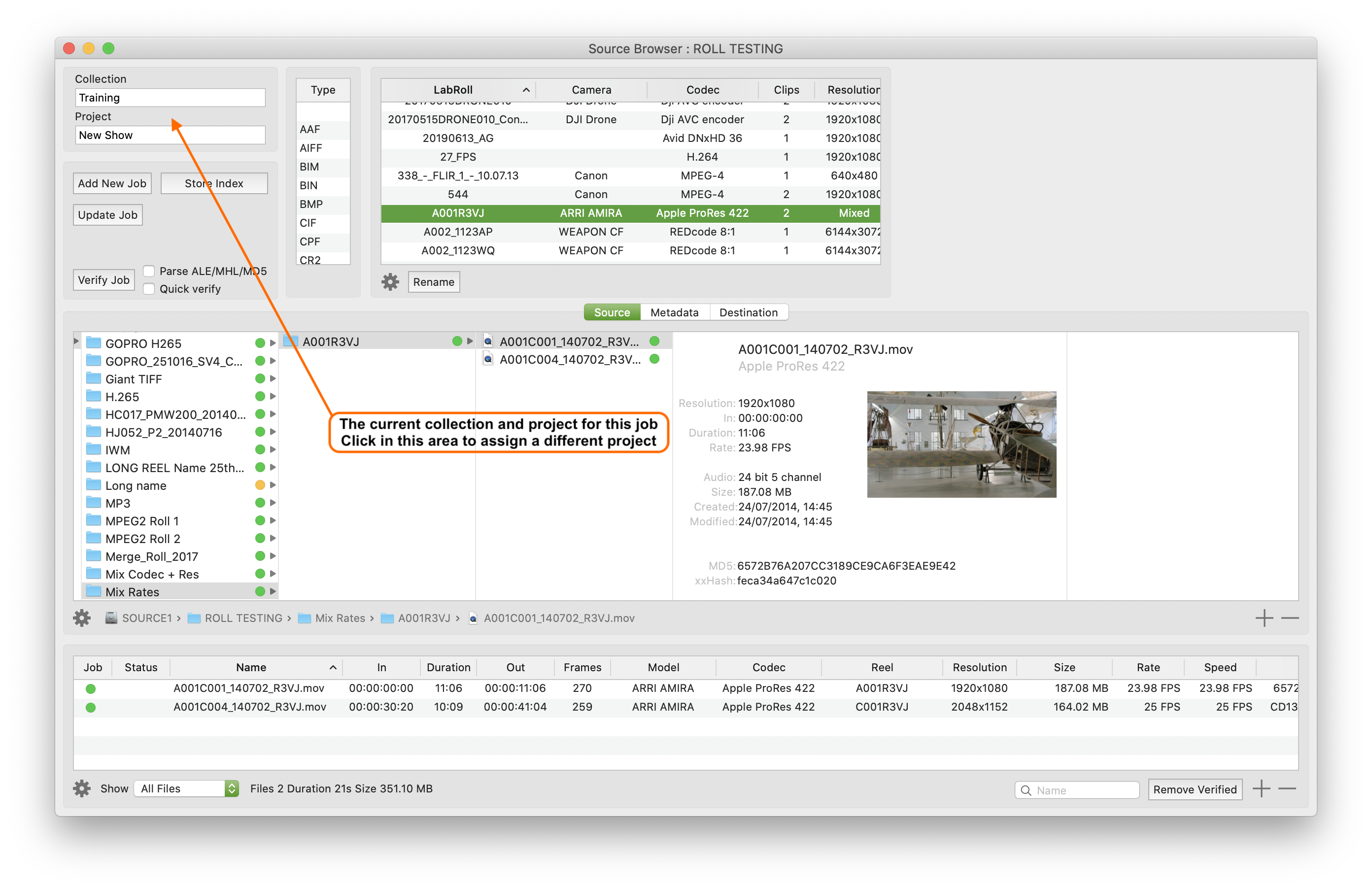
Or to assign an existing job to a different project use the Source Browser as shown below.
The structure and naming is not important and none of this information is stored on the destination drive or tape.
However when copying files the destination folder structure can be built up using dynamic tokens which include collection and project.
See the Destinations and Reports support page for information about destination tokens.
Assigning a job to a different project
Open the Source Browser by selecting the job and clicking the Folder icon above the job table. Then click the Open Projects button to open the project panel.
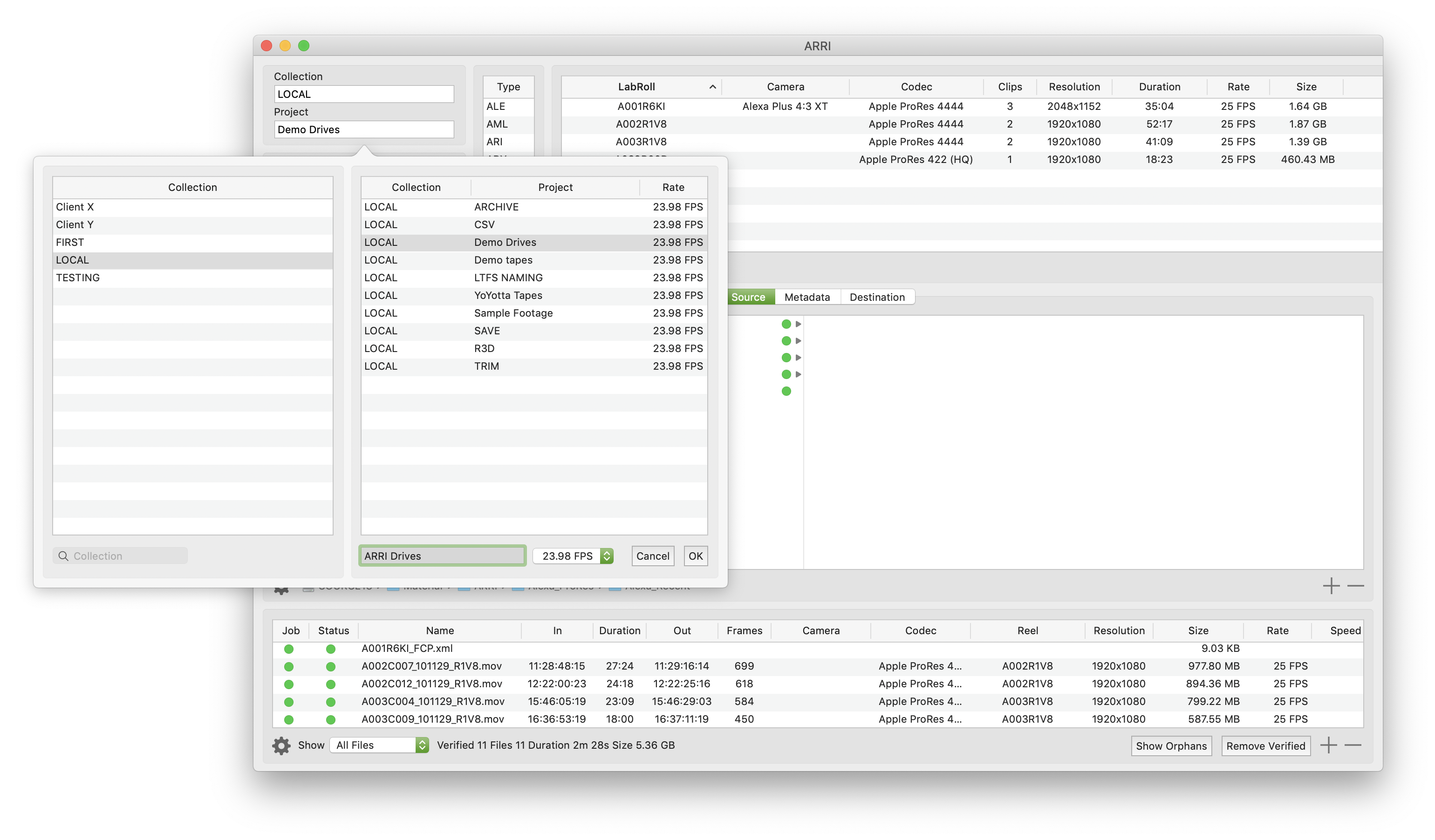
Add a new project
Projects are grouped inside Collections.
Select an existing Collection or create a new Collection by clicking + below the Collection table and entering a Collection name.
Collections names could be clients, years, type of work or you can just have one collection for all projects.
Select a Collection and then click + below the Project table to create a new Project.
Enter the new project name. If working with camera footage select the usual frame rate and click OK. The frame rate is used to display project timecode durations, but it's not critical to set this.
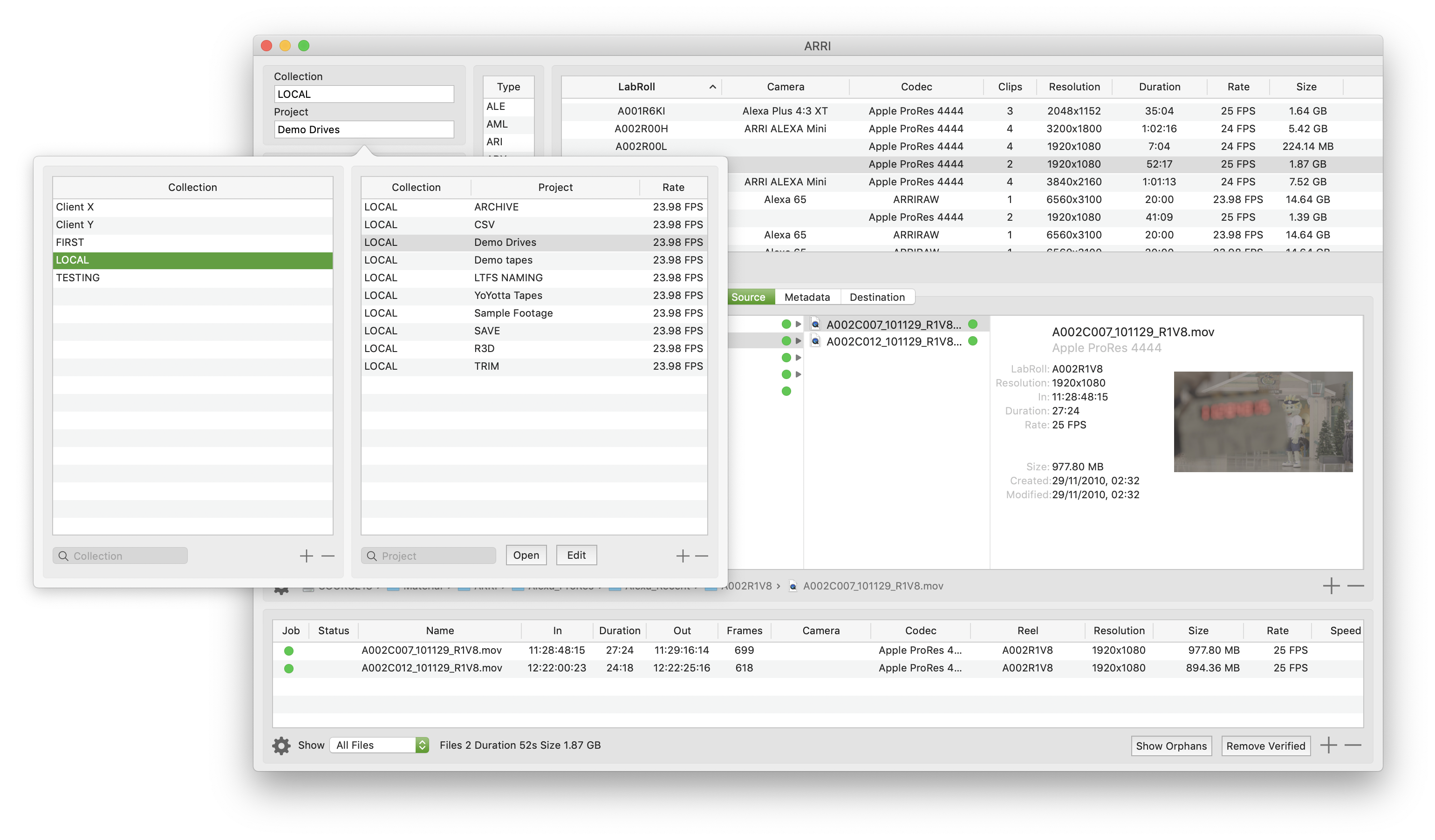
Open an existing project
Projects are grouped together in Collections. Select a Collection, then select a Project and click Open, or double click the project name.
If no Collection is selected then all projects will be shown. Once opened the Project name will change for that Job.
© 2026 YoYotta Back to Top